
MapflowAgent - Chat with Our Geospatial AI Engine
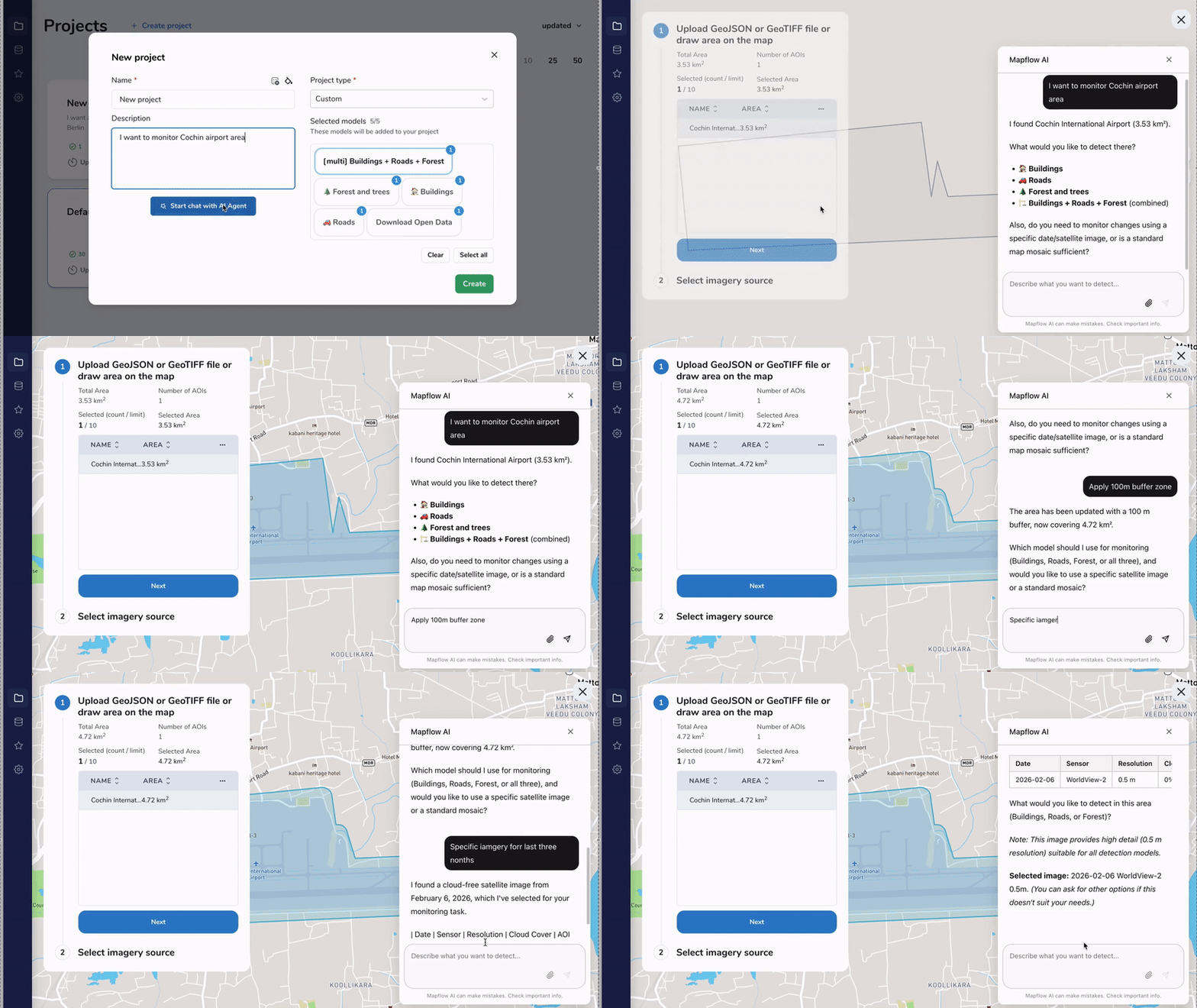
For two years, we’ve been watching more and more Mapflow users utilizing Project description text area as an input for their prompt to create a map.
The world has changed. So have we.
Today we’re launching Mapflow Agent in early beta — an LLM-powered chat that reads your intent, builds the right pipeline on the fly, and runs the analysis on Mapflow’s geospatial engine.
The problem was quite obvious —we’ve noticed that many users create projects and abandon them without any processings. We even figured out the metric called “project activation rate” — the share of projects produced at least one processing. The picture wasn’t pretty: more than half of all projects sat empty, never run.
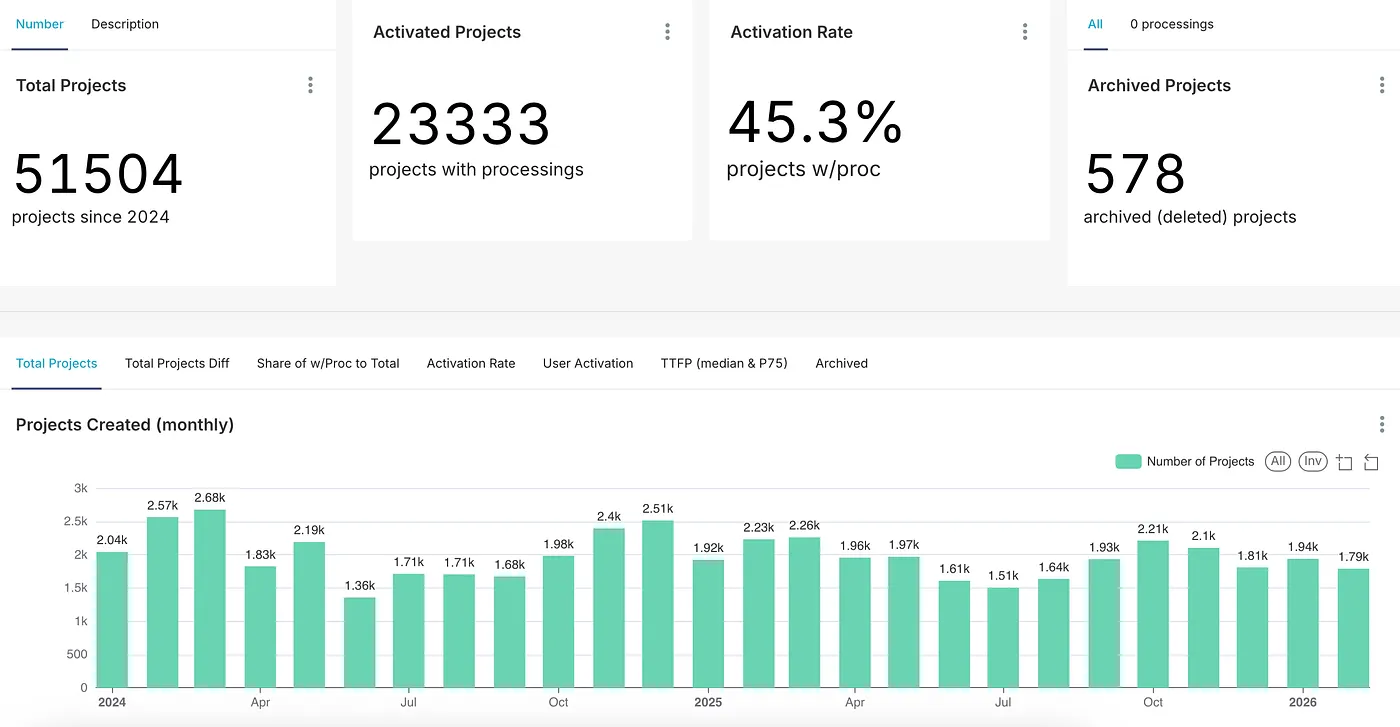
Mapflow user projects over 2+ years Filtering for projects where users had bothered to write a description didn’t help. That subset activated at just ~41% — lower than average.
So what these users actually do?
We took the descriptions, anonymized projects, and classified them. The categories revealed a clear pattern: the most common pattern are the things Mapflow already does — buildings, roads, vegetation, land use, etc. Why the share of them are abandoned without the processing?
We made a hypothesis that users wanted to create a map just by adding the project description (prompt) without freaking out over the Mapflow pipeline builder and drawing their geographical area on the map.
By briefly running the model to analyse the user project’s description, anonymized from user’ email, we classified them into the several categories by the relevance to Mapflow core functionality.
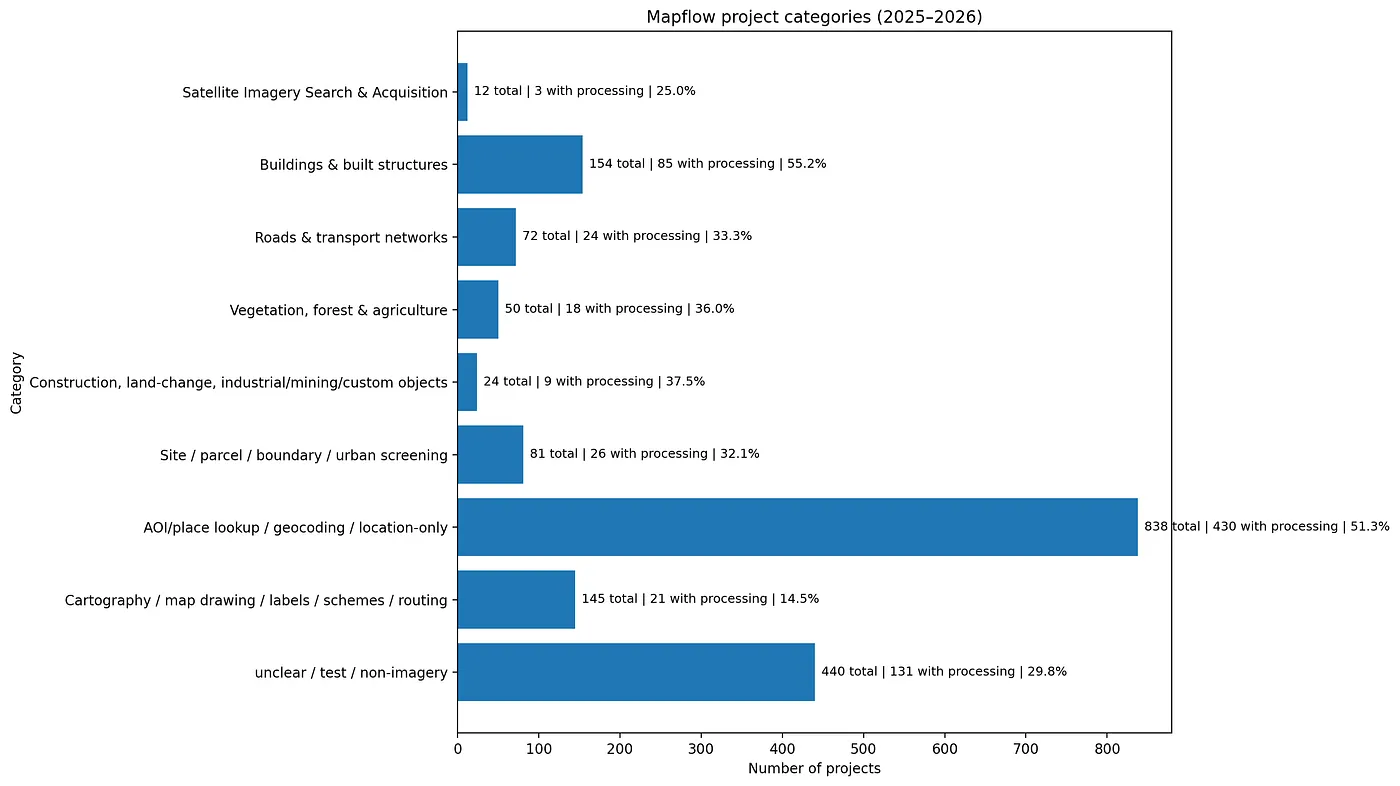
That said, we came up with the hypothesis that we can improve UX and increase the activation metrics by implementing the LLM tool, Mapflow Agent, that reacts to the user project descriptions.
Mapflow Agent is coming
We are launching Agent in beta, meaning that users need to toggle it first and confirm the use of this new powerful feature. This is because it can make mistakes (sure it does), and because we need time to collect more evidence and fix issues if they’ve missed in our final testing.
So what the Agent can do and what (supposedly) it shall be bold in.
Subscribe to the Medium newsletter Some examples: One of biggest simplifiers of the user’s workflow is to find a place and load it’s geometry directly on the map to get started with the next step of the processing. However it wouldn’t be the point of interacting with the Agent inside the Mapflow if it didn’t leverage the tools already available. So it reacts to the user’s actions with the map — if user edits the geometry of his area of analysis directly on the map — Agent will recalculate the area and the cost of processing.
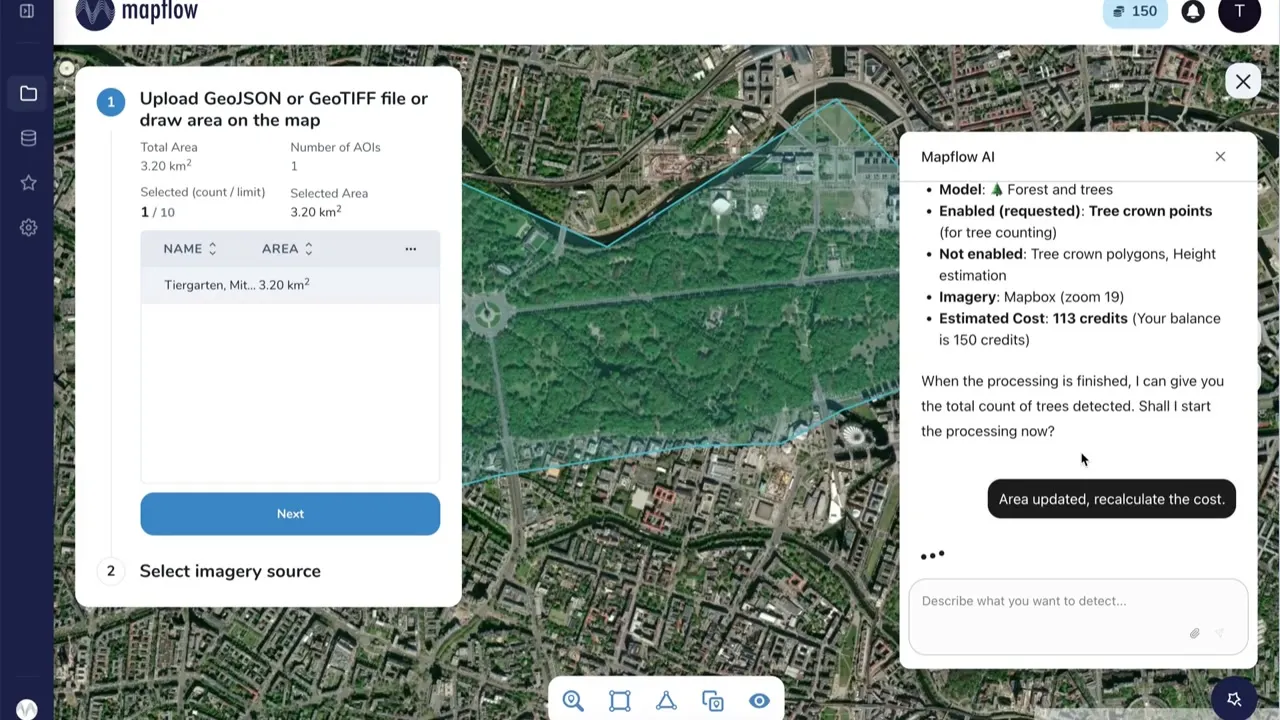
React to your edits in real time If you treat him… you see, I’ve alredy switched to the human-like pronoun, oh my gosh 😄… Well, if you treat him carefully, he can suggest the more recent satellite images covering your AOI.
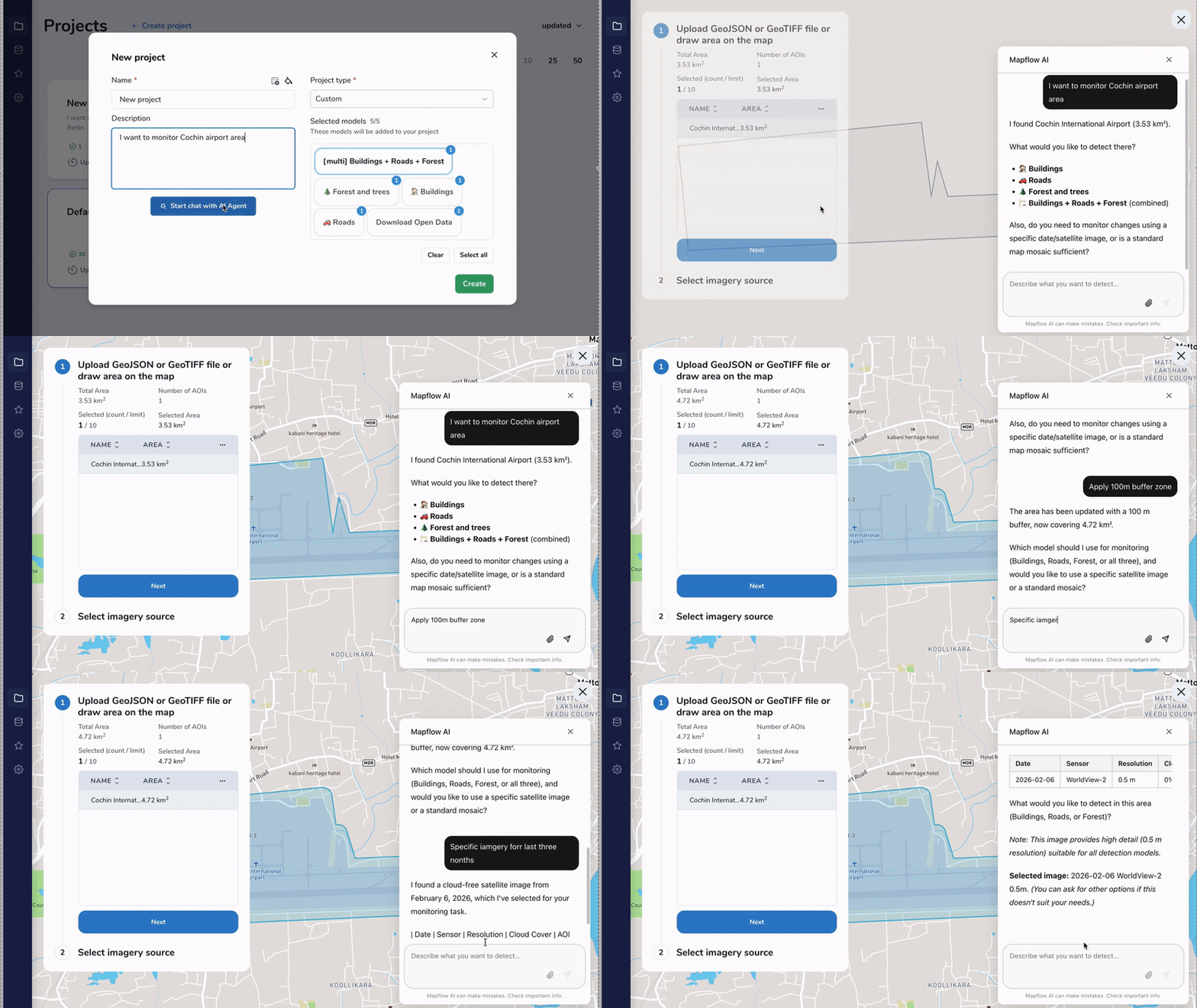 Prompt: “I want to monitor Cochin airport area”
It can analyse your GeoJSON results and answer questions like “how many objects?‘, ”what’s the bult-up area?”, etc.
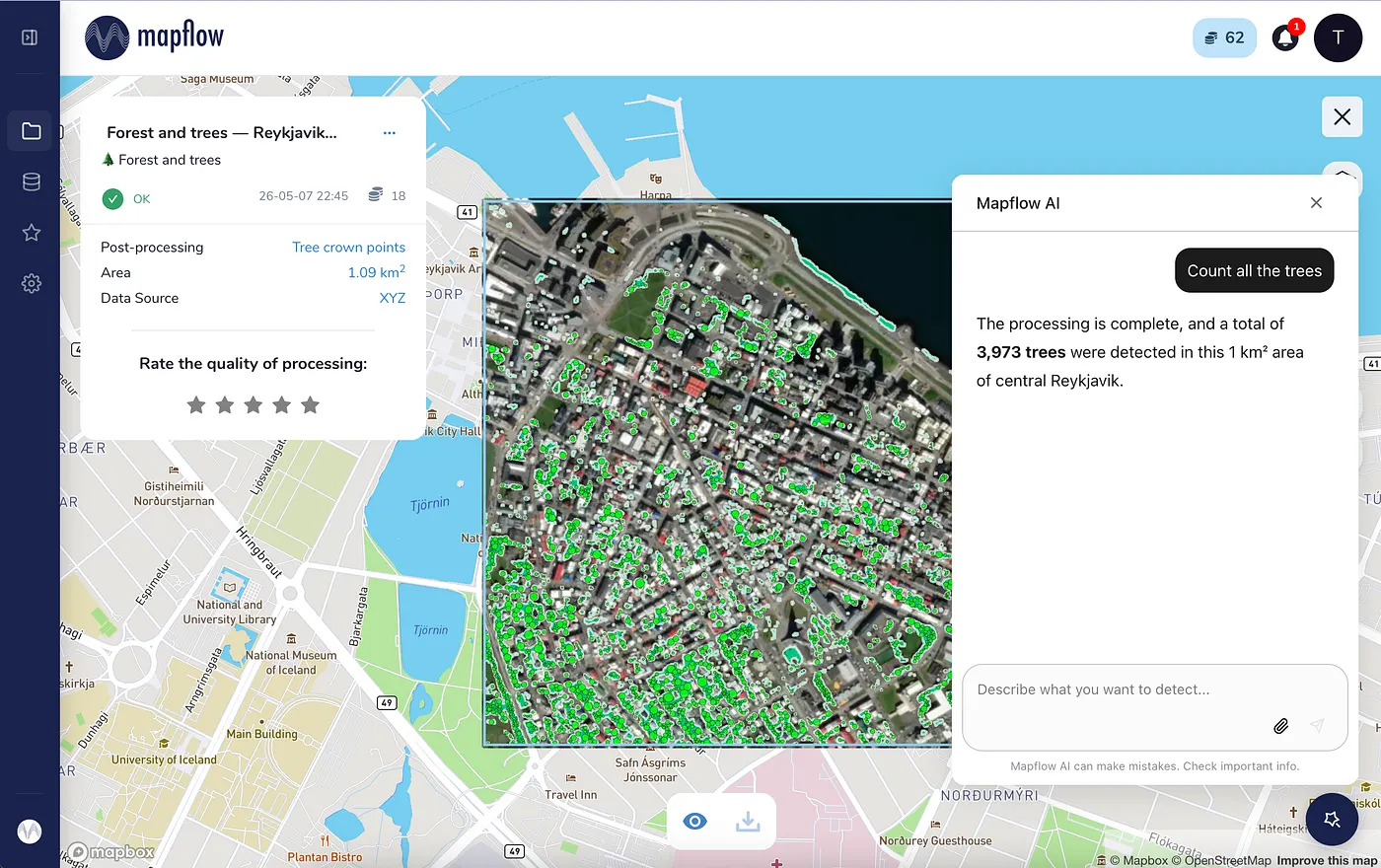 Prompt: count all the trees
What Agent can’t or is not supposed to do:
- Agent never runs a processing on your behalf without you confirming the cost estimate first
- Configure custom mapping pipelines (not yet, contact human support instead 🧑🏻💼)
- No GeoTIFF uploads via chat. (not yet. Agent refers to the classical UI, where you start from selecting your AOI or image file)
We sure there are many more valuable functions that we will train the Agent for. We are super exited to launch it and to hear what you think are the next top priority skills the Agent should have.
Now four ways in
With the Agent the number of Mapflow user products grew up to four:
- Mapflow Web — the canonical UI for visual workflows
- Mapflow QGIS plugin — for GIS experienced users working in QGIS
- Mapflow API — for pipelines, bulk processings, and integrations
- Mapflow Agent — for everyone who’d rather just describe what they want
Even if you are experienced Mapflow user and have preferences for Web app or QGIS, we encourage you to try Agent on a couple of projects and tell us what’s missing. And do contact our human support — we love it, and don’t want to be boring behind the chatbots. 😴
How to join beta
You just need an account registered at Mapflow.ai. Go to your Profile at app.mapflow.ai and toggle Mapflow Agent on.
That’s it. The chat will appear as soon as you switch to the Project or create the new one.
Happy mapping!
Originally published on Medium